QXP IMAGES CATALOG
Do you want to be able to catalog images in Xpress in just a minute or two?
QXP Images Catalog is the solution. It can catalog files in EPSF, TIFF, JPEG, PICT, Scitex CT, PDF and GIF formats using Quark Xpress™, the popular and flexible page layout software.
You will find QXP Images Catalog perfect for cataloguing collections of photos, clipart, or other images for any of your projects.
The new version of QXP Images Catalog offers more flexibility than before:
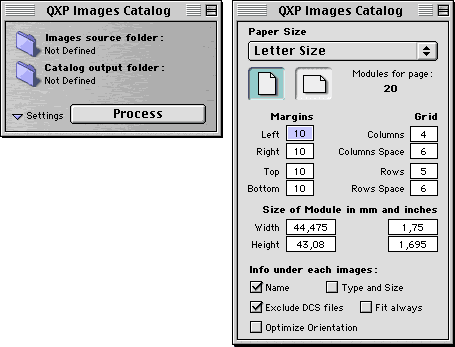
• When you choose a source folder, QXP images Catalog scans and processes all subfolders. For each folder processed, a separate catalog page is saved in the output folder.
• You may now choose more paper sizes or define up to 10 custom sizes.
• After choosing the page size, you may define the margins (left, right, top, bottom) and split the page into any combination of columns and rows.
• Whenever a value is changed in the settings area, the width and height of each module is recalculated with new values shown in both millimeters and inches.
• You may set the catalog page orientation (portrait or landscape).
• You may include a label under each image, containing the file name of the image, its type and size. When you have finished cataloguing you can create an Acrobat PDF file for electronic distribution.
System Requirements
Quark Xpress 3.32 or 4.04, 4.1, 4.11
Version History
2.9
Images are now sorted before placed in page.
2.8.5
The preferences related to units of measurement are now preserved in both Xpress Preferences and documents created by QXP IC.
Improved compatibility with OS 9.1
Fixed bug with Powerbook defining new custom paper sizes.
2.8
QXP IC now detects DCS files generated by Xpress 4.x (for the function “Exclude DCS”).
Minor internal optimizations.
2.7.5
QXP IC now detects the current Xpress version correctly.
Fixed bug which occurred while processing filenames of less than two characters.
2.7
Fixed compatibility with new MacOs 9.1
2.6
Added a feature to import GIF files (only for version 4.x of QXP).
To import GIF files, Xpress 4.x must have the Quark Xtension called “GIF Import” in the Xtension folder (available as free download from www.quark.com).
Fixed bug in the selection of the source folder.
2.5
Added the check-box “Optimize Orientation”.
Added a feature to import PDF files (only for version 4.x of QXP).
To import PDF files, Xpress 4.x must have the Quark Xtension called “PDF Filter” in the Xtension folder (available as free download from www.quark.com).
2.4
Number of rows or columns can be set to 1.
Minor internal changes and optimization.
2.3.5
Fixed bug that prevented selection of a source folder bigger than 2 GB.
2.3.1
Fix for compatibility with Xpress 4.11.
2.3
Added check-box “Fit always”. When checked, images are always reduced or enlarged to fit the picture box; otherwise images are imported at 100% and if larger than the box are reduced to fit (but small images are not enlarged).
New Finder Icon.
2.2.1
Fixed check-box “Exclude DCS” to enable/disable correctly.
Aligned the two versions of QXP Images Catalog (3.32 and 4.1).
2.2
Added check-box for excluding DCS files.
2.1
Compatibility with all versions of Xpress (3.32 - 4.04 - 4.1).
The software now checks if Xpress is open in the background and if the version of Xpress is appropriate.
Improved speed.
2.0
User can now choose to write information under each image (name, type [TIFF, EPSF, PICT…], size [Kb or Mb]).
Added support to define custom pages (up to 10 formats).
2.0 Beta
New version
1.0
Initial Release
FAQ (Frequently Asked Questions)
Q: Will the registration be valid for updates of QXP Images Catalog?
A: Yes, the registration will be valid for all the future updates of QXP Images Catalog under MacOs (not Os X).
Q: I can’t decompress the software downloaded.
A: You have to unstuff the file with StuffIt Expander 5.5 or higher.
Using previous versions of StuffIt Expander could cause bad unstuffing.
Download latest version of StuffIt Expander from:
http://www.aladdinsys.com/expander/
Q: Where should I fill in the registration code?
A: You don’t have to fill in any registration field. Simply place the file “Registration Code” in the QXP Images Catalog folder. That’s all. Then launch your QXP Images Catalog application and you will see your name on the splash screen.
Please bear in mind that you MUST NOT modify the content of this file, nor its file name, under any circumstances.
Q: I launch QXP Images Catalog but after the splash screen, the main window does not appear. Why?
A: This can occur when using OS 9.1. Ensure that all extensions related to “Security Library” are enabled; otherwise QXP Images Catalog cannot work properly.
Q: Should I increase the memory assigned to QXP Images Catalog?
A: No, you don’t need to.
Q: Is QXP Images Catalog compatible with OS X, or does QXP Images Catalog run under Classic mode in the OS X environment?
A: At the moment, QXP Images Catalog doesn’t work in the OS X environment, even in Classic mode (OS 9.x). However, QXP Images Catalog can be used with the “normal” Mac OS in any version from 8.5 to 9.2.1.
About Registration
Paying for QXP Images Catalog is fairly simple. There are two methods.
On the Web (quick, easy and secure payment on-line) and by the “Register” application (off-line).
To register on the web:
Go to the web page http://order.kagi.com/?7BY
1 - Choose the product and how many copies you want.
2 - Click on the button “Continue” and the invoice form will appear.
3 - Fill in the fields with your name, email, address, credit card data and then click on the button “Purchase”. That's all.
Don't forget to include your email address. If you haven't got one, send a friend's email address.
We cannot accept orders without an email address because we can only send the “Registration Code” file (which unlocks the shareware limitations) by email.
Kagi will send you the approved invoice in 3 days at maximum (usually in few a hours or minutes).
After that you will receive from us via email a small text file called “Registration Code” to put inside the “QXP Images Catalog” application folder.
This text file will unlock the shareware limitations.
We usually send the “Registration Code” within 24 hours (sometimes even in a few hours), so if you haven't heard anything after 3 days, most likely you have given us an invalid email address.
In that case, please contact us at info@softhing.com providing an alternative email address.
To register off-line by the “Register” application:
You need the “Register” application that accompanies the QXP Images Catalog package.
If the package doesn't include the “Register” application, you can download it from http://www.softhing.com/download/register.sit
1 - Launch the “Register” application, enter your name, email address and the number of single user licenses or other licenses you desire.
2 - Save or copy or print the data from the Register program and send the data and payment to Kagi (the best way is via email to sales@kagi.com).
Kagi is the company which handles our payment processing.
The fastest way (maximum 3 days, but usually a few hours) is to save the invoice to a text file, choosing “via email”, and send that text file via email, as an attachment, to sales@kagi.com. You can also open the invoice text file with an editor (e.g. SimpleText) select all the text, copy and paste the text to the email message body just as it is (without making any changes).
Don't forget to include your email address.
If you haven't got one, send a friend's email address.
We cannot accept orders without an email address because we can only send the “Registration Code” file by email.
Kagi will send you the approved invoice in 3 days at maximum (usually in few a hours or minutes).
After that you will receive from us via email a small text file called “Registration Code” to put inside the “QXP Images Catalog” application folder.
This text file will unlock the shareware limitations.
We usually send the “Registration Code” within 24 hours (sometimes even in a few hours), so if you haven't heard anything after 3 days, most likely you have given us an invalid email address.
In that case, please contact us at info@softhing.com providing an alternative email address.
If you are paying with Cash or USD Cheque you should print the data using the Register application and send it to the address shown on the form, which is:
Kagi
1442-A Walnut Street #392-7BY
Berkeley, California 94709-1405
USA
You can pay with a wide variety of cash from different countries but at present if you pay via cheque, it must be a cheque drawn in US Dollars. Kagi cannot accept cheques in other currencies.
If you have a purchasing department, you can enter all the data into the Register program and then select Invoice as your payment method. Print three copies of the form and send it to your accounts department. You might want to highlight the line that mentions that they must include a copy of the form with their payment.
Kagi cannot invoice your company, you need to act on my behalf and generate the invoice and handle all the paperwork at your end.
Please do not fax or email payment forms that indicate Cash, Check or Invoice as the payment method. As far as we know, there is still no technology to transfer physical objects via fax or email and without the payment, the form cannot be processed.
Payments sent via postal mail take time to reach Kagi and then up to 10 days for processing. Again, if you include a correct email address, you will hear from Kagi when the form is processed.
For any information about the software, or to notify us of bugs or to request enhancements:
Email: info@softhing.com
Web Site: http://www.softhing.com
For further information about the payment:
Kagi - Email: sales@kagi.com
Web Site: http://www.kagi.com